Supernatural Squad PC Controls: verify the right key layout
The safest way to handle Supernatural Squad PC controls is to verify the current client prompts, then test keyboard, mouse, and controller actions one group at a time. This guide covers recommended binding checks without inventing a permanent key chart.
Unofficial fan guide. Bindings and supported devices can change with client updates, so the current in-game settings screen is the final reference.
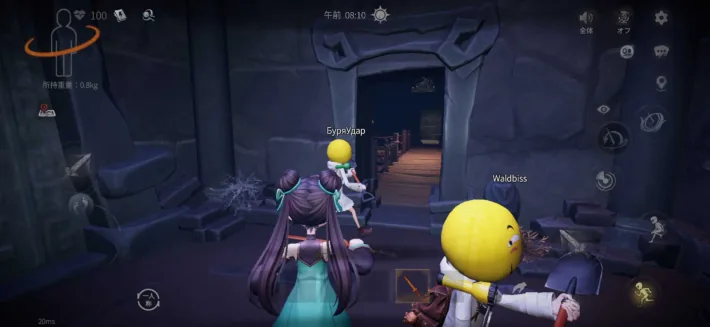
What this page covers
Quick answer: verify the current prompts before copying a key chart
The official Tomb Busters site currently presents Android, iOS and PC cross-play routes and links to an official PC setup file dated June 25, 2026. That matters because some search results still describe emulator-only ways to play on a computer. Those older pages can be useful for emulator mapping, but they should not be treated as proof that a native official PC route does not exist.
The public website does not expose a complete, stable list of every movement, interaction and communication key. Bindings can vary with client updates, keyboard layout, controller model and third-party remapping. This guide therefore avoids claiming that a particular letter or button is guaranteed. Open the current client settings and verify movement, camera, interaction, equipment, ping, voice and menu actions in that order.
Keyboard and mouse usually suit fast camera movement and precise pointing. A controller may be more comfortable for analog movement and a living-room display. If prompts keep switching between devices, disconnect unused hardware and disable duplicate mapping layers before changing sensitivity. A clean single-device test gives a much better diagnosis than changing five settings at once.
Recommended setup example: test movement and camera first, then interaction, equipment, ping, voice, and menu actions. Save the working layout before changing sensitivity or adding an external remap layer.
| Input | Best fit | Check first |
|---|---|---|
| Keyboard + mouse | Fast camera, precise pointing, quick menus | Layout, sensitivity, inversion, side buttons |
| Controller | Analog movement, couch play, longer sessions | Connection, prompt type, dead zone |
| Emulator mapping | Running the mobile interface on PC | Touch zones and external key overlays |
The official PC client and an Android emulator do not share one control map
Search results mix the official client, cloud mirroring and Android emulators. Identify the environment first, because each one translates input differently.
| Route | Control source | Main risk | Best for |
|---|---|---|---|
| Official PC client | PC prompts and bindings shown by the game | Updates may change labels or defaults | Players using the official PC cross-play route |
| Android emulator | External keys mapped over touch controls | UI movement, duplicate input, policy uncertainty | Players who specifically need the mobile interface |
| Cloud mirroring | Phone input translated through a PC service | Latency, disconnects and mismatched prompts | Players keeping the game session on a phone |
Six-step Tomb Busters PC controls setup
Use a tutorial or safe lobby and verify one action at a time. Do not guess a binding that the current client does not show.
Verify the official source
Start from tombbusters.net and confirm that the setup route uses download.tombbusters.net. Do not confuse a mirror advertisement with the first-party download button.
Connect one input device
Begin with keyboard and mouse or one controller. Multiple active devices can make prompt switching difficult to diagnose.
Open input settings
Check controls, bindings and controller options before display tuning. Save a screenshot or note of the default state before changing anything.
Test core actions
Verify movement, camera, interact, sprint, crouch, equipment, ping, voice and menu actions in a safe area. Follow the live prompt when a web guide disagrees.
Tune sensitivity and dead zone
Change values in small steps. If the camera moves by itself, test stick drift and duplicate inputs before reducing sensitivity.
Share co-op controls
Make sure every teammate knows ping, voice, rescue and item-use controls. Reliable regrouping and extraction inputs matter before combat optimization.
Choose a keyboard, mouse or controller profile for your play style
There is no universal best device. Camera speed, posture, display distance, communication habits and equipment roles all affect the choice.
Keyboard and mouse
Useful for fast scanning, precise pointing and quick inventory navigation.
- Check mouse acceleration
- Keep rescue actions within reach
- Avoid chat-key conflicts
Controller
Useful for analog movement and longer sessions on a larger display.
- Test wired recognition first
- Match prompts to the physical layout
- Check stick drift and dead zone
PC and mobile teammates
Shared callouts matter more than identical hardware.
- Confirm a common ping action
- Agree on short no-voice signals
- Prioritize rescue controls
Verify bindings by function after every important update
A current in-game prompt is more reliable than a stale web chart. Check the following groups to avoid missing a critical co-op action.
Movement and camera
Test forward, back, strafe, camera, inversion, sprint and crouch. Continuous movement can indicate drift or a second active input.
Interaction and equipment
Test interact, pick up, drop, swap, light and mobility equipment. Separate actions that are easy to trigger accidentally.
Team communication
Verify ping, voice, quick callouts, teammate view and menus. Move emergency actions if they are difficult to reach under pressure.
Retest after saving
Close the menu and test during real movement. If changes do not persist, inspect permissions, cloud sync and external remapping software.
Fix unresponsive controls and constantly changing prompts
Change one layer at a time: hardware, connection, game settings and then external software.
Keyboard or controller does not respond
Exit the game, disconnect unused devices, reconnect one device and restart. Confirm that Windows and another app can see the same input.
Prompts jump between keyboard and controller
Check tiny mouse movement, stick drift, multiple controllers, Steam Input and mapping tools. Pause the unused input layer.
The displayed button triggers a different action
Check controller layout, regional keyboard layout and external remaps. Record the current setup before resetting defaults.
Cloud or wireless input feels delayed
Compare wired input with the official PC client. Separate video latency from input latency before changing sensitivity.
Version and official-source freshness check
Because this site includes download-intent pages, official distribution data was rechecked before publication. Verified August 7, 2026.
| Source | Verified information | Checked |
|---|---|---|
| Official website | PC, Android and iOS routes plus PC cross-play context. setup-pc_official_20260625.exe is a roughly 3.1 MB launcher. | 2026-08-07 |
| Google Play | Official listing updated July 31, 2026; package com.game.tombbusters. The public page did not expose a verifiable exact version, file size, or stable direct APK, so the official store page remains the fallback. | 2026-08-07 |
| Apple App Store | iOS version 1.31.11, released August 1, 2026; 1,069,424,640 bytes (about 1.0 GB) on the public App Store listing. | 2026-08-07 |
Public sources checked
First-party sources support version and distribution facts. Third-party control context is labeled separately.
Tomb Busters official site
PC, Android and iOS routes and the official distribution domain.
Open official siteApple App Store
Current iOS version, size and compatibility information.
Open App StoreOSLink PC guide
Third-party cloud-control example, kept separate from the official PC client.
Read third-party contextTomb Busters PC controls FAQ
The Similarweb question tab returned no usable controls questions, so these FAQs are limited to recurring SERP and setup issues.
The official website provides a PC route. Verify keyboard and mouse recognition in the current PC client settings. The public website does not provide a complete permanent key chart, so this guide does not claim unverified letters or buttons.
Similarweb shows demand for “tomb busters pc play with controller,” but the supported model and prompts can vary. Connect one controller by cable first and verify every core action in settings and a tutorial.
Use the official PC route first when you want the native distribution path. Emulator controls are an external overlay on the mobile interface, so an emulator key map may not match the official PC client.
Check external remapping, cloud synchronization and folder permissions one at a time. Record the current layout before resetting defaults.
Common candidates include tiny mouse movement, stick drift, multiple devices and overlapping Steam Input or mapping software. Disconnect unused devices and test one layer at a time.
Connect one input device, open the current settings screen, test core actions in order, and record the working bindings. Add controller or external remapping only after the native PC layout is stable.